
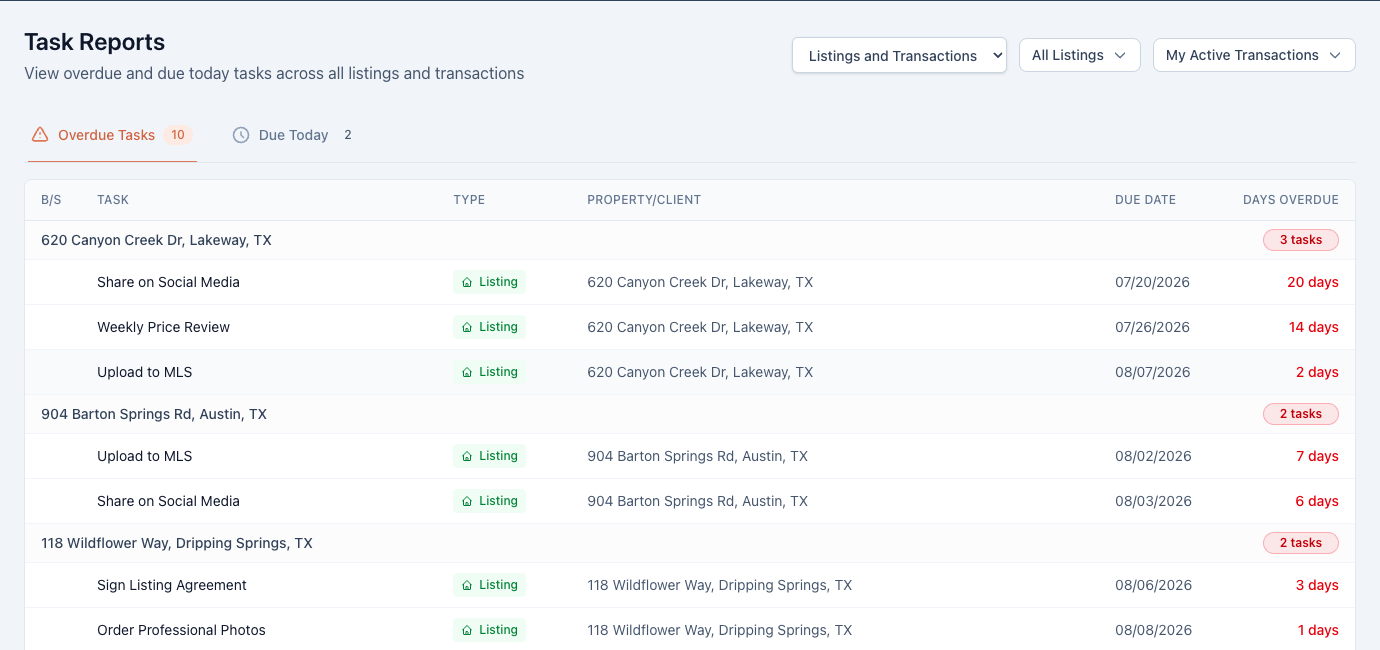
Instead of opening files one by one to check what’s slipping, the Reports page answers it in one screen.
- Click Reports in the sidebar.
- Two tabs, each with a live count: Overdue Tasks and Due Today.
- Tasks are grouped by property. Each row shows the task, its buyer/seller marker, type, property, and due date — the Overdue tab adds Days Overdue, sorted so the oldest fires first.
- Click a property’s header row to jump into that transaction or listing and work the tasks.
The dashboard gets you here too — the Tasks Due Today stat card and the Upcoming Tasks card both link straight into the reports.
Scoping the report
Top-right of the page:
- The scope selector switches between Listings and Transactions, Listings, or Transactions only.
- The filter dropdowns apply your saved filters by name — for the report’s scope, the filter’s Owner and Status criteria are what’s applied.
One default worth knowing: with no filter selected, the report shows tasks on records you own. If you run a team and want the whole-team view, save a filter with the Owners you want and select it here — you can make it your default so the report always opens that way.
Good to know
- Only incomplete tasks with a due date appear — a task with no date can’t be overdue, which is a good argument for driving dates automatically.
- “Today” follows your company’s timezone setting, not your browser’s.
- Report views live in the URL, so you can bookmark your morning check or share the exact view with a teammate.