
Any transaction can be exported as a clean, branded PDF — useful for agent updates, client packets, and closing files.
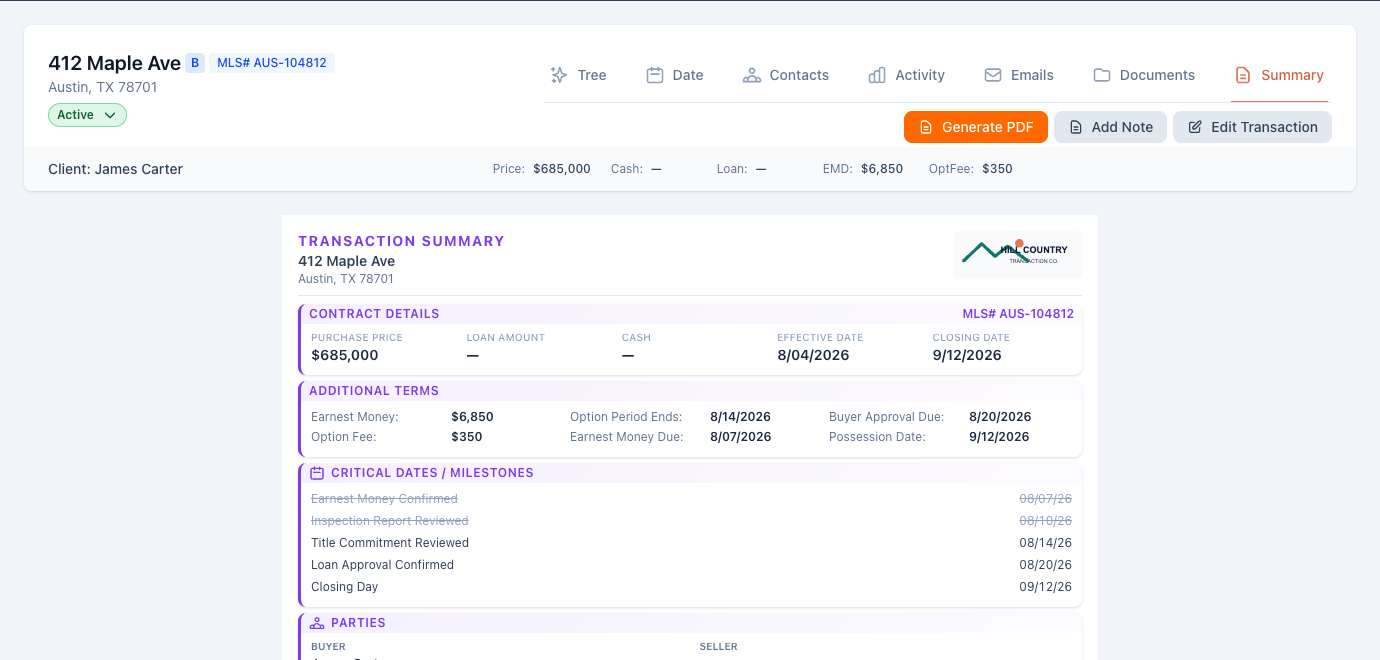
- Open the transaction and select the Summary tab.
- Click Generate PDF (top right). The button reads Generating… for a moment while the file is built.
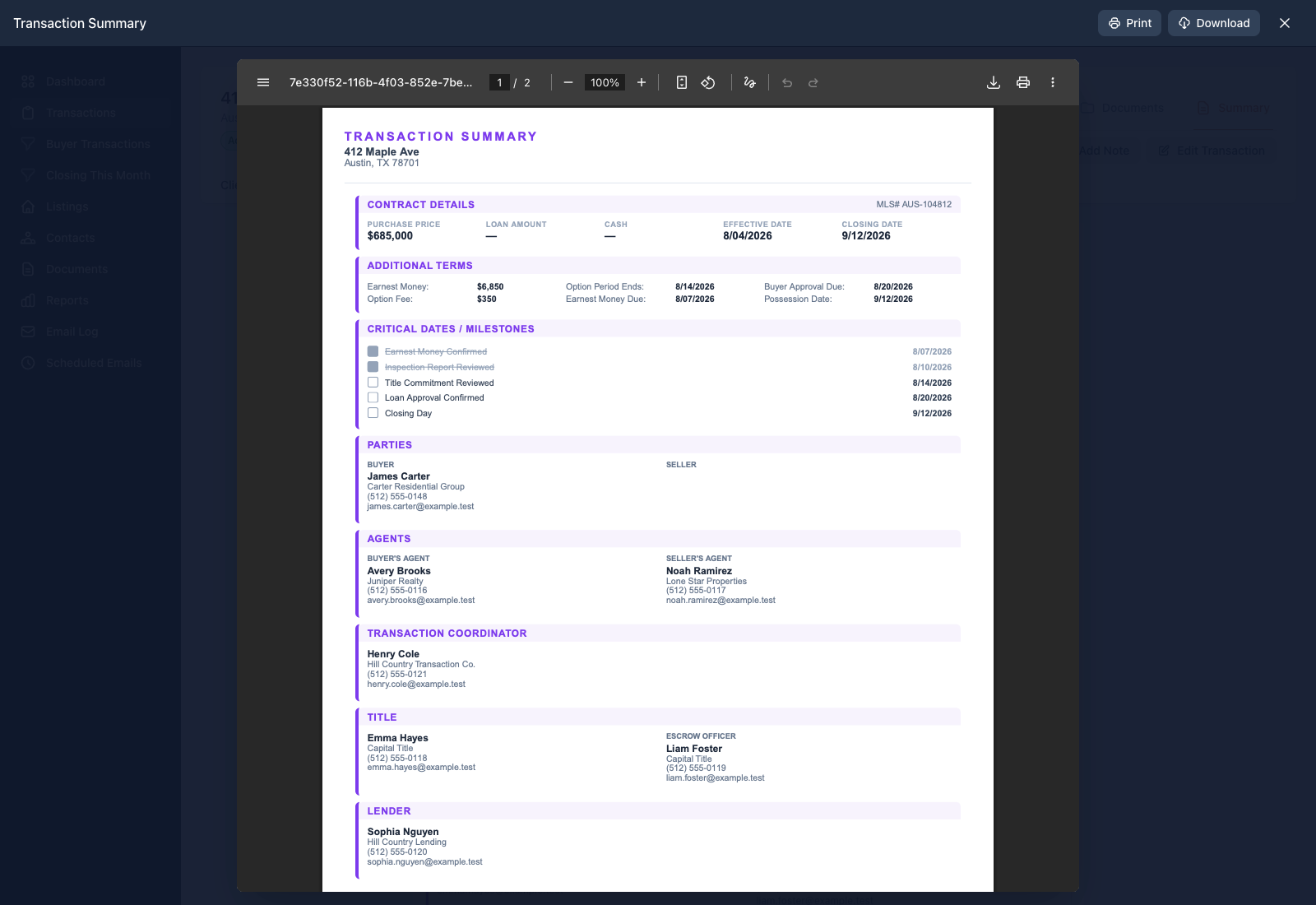
- A preview opens. From here you can Print, Download, or close the preview.
The downloaded file is named after the property address —
123-Main-St-summary.pdf.
What’s in the PDF
The summary includes the sections that have data, in this order: contract details (price, loan, key dates, MLS number), additional terms (earnest money, option fee, option period), critical dates, parties, agents, transaction coordinator, title, lender, key tasks, and any notes marked for the summary. Sections with nothing in them are left out automatically — a cash deal shows CASH DEAL in place of the lender block.
You control which tasks and notes appear — see how to control what appears on the summary.
Good to know
- The PDF is built fresh each time you click Generate PDF. If you change transaction data or branding while a preview is open, close it and generate again.
- Print opens the PDF in a new tab — if nothing happens, check your browser’s popup blocker.
- Nothing is stored until you download: generating a summary doesn’t add a file to the transaction’s documents.