
You don’t need separate buyer and seller templates. Sides are set per-task, and the checklist filters itself when applied.
- Open a task in a transaction template.
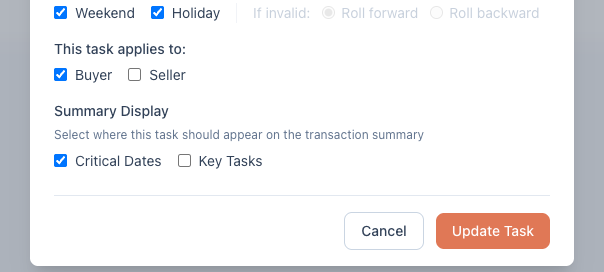
- Find This task applies to: and check Buyer, Seller, or both.
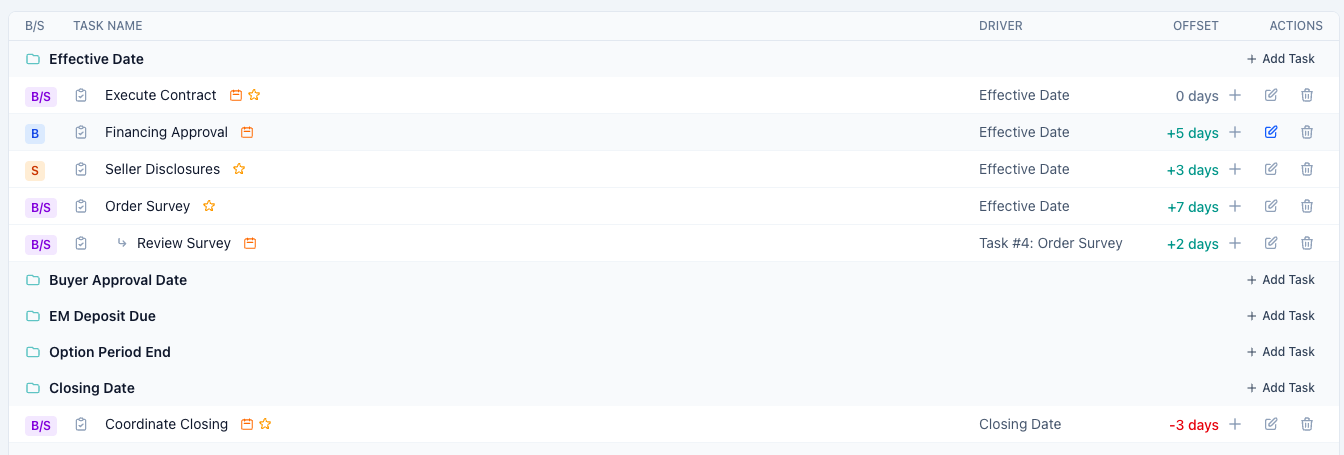
- Save. The task list shows each task’s side as a colored pill — B, S, or B/S — and the template list shows the same badge next to its task count.
When you apply the template to a transaction, only tasks matching the transaction’s representation come along: a buyer-side transaction gets the B and B/S tasks, a seller-side one gets S and B/S. Tasks for the other side are left out automatically.
Building the shared template
The pattern that works: mark everything common to both sides B/S (open escrow, earnest money, closing scheduling), then flag the side-specific work — inspection and option items Buyer, disclosure packets and payoff ordering Seller. One template to maintain, both sides covered.
Good to know
- Every task needs at least one side checked — the form won’t save without it.
- Child tasks inherit their parent’s sides: a buyer-only parent can only have buyer-only children (the checkboxes lock accordingly).
- On a transaction representing only one side, new tasks lock to that side too.
- If you prefer fully separate buyer and seller templates, that works as well — duplicate your template and trim each copy. The per-task flags just save you maintaining two.